# How to Sending Follow Signal Trading Information

**Here is an example of Launching a robot on the uTrading**

**Step 1:** Open and sign in to the uTrading App, First click on **\[**<mark style="color:blue;">**Signals**</mark>**]**; Click the Telegram icon in the upper-right corner. As follow:

<figure><img src="/files/p8Frq9VEe9LsLT22uOZh" alt="" width="563"><figcaption></figcaption></figure>

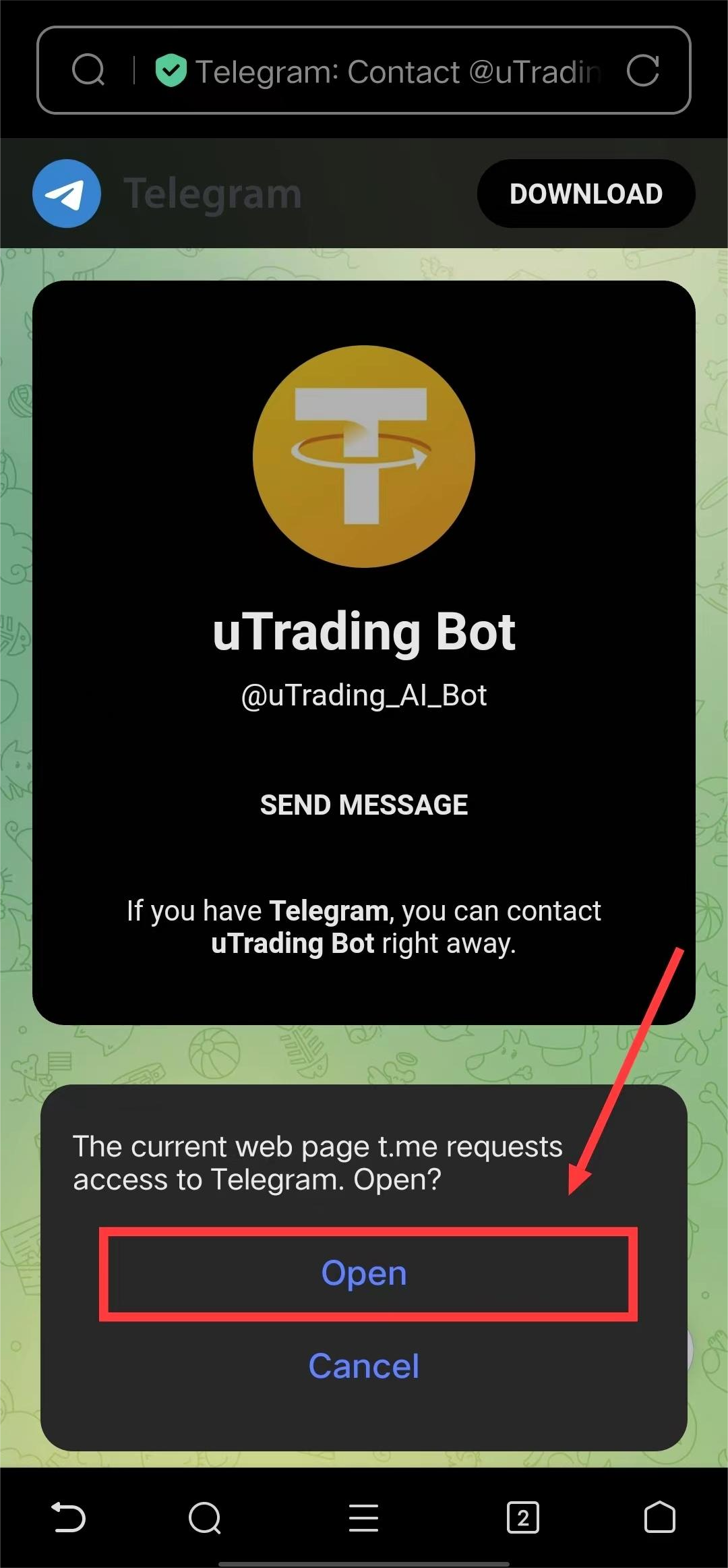
**Step 2**: Page Redirect, and Click **\[**<mark style="color:blue;">**Open**</mark>**]** to launch Telegram. As follow:

<figure><img src="/files/TKKDsnoL2HhSnxPEv9eZ" alt="" width="375"><figcaption></figcaption></figure>

**Step 3**: Enter Telegram page, automatically Pop Up **\[**<mark style="color:blue;">**/start**</mark>**]**, and uTrading Bot will automatically replies **\[**<mark style="color:blue;">**successful associated account!**</mark>**]**. As follow:

<figure><img src="/files/uHZgexmSREFW4F3CD5h7" alt="" width="563"><figcaption></figcaption></figure>

**Step 4:** Click the **\[**<mark style="color:blue;">**Menu**</mark>**]** button, and then Click **\[**<mark style="color:blue;">**manage your copy trading**</mark>**].** As follow:&#x20;

<figure><img src="/files/Djrl0uX45wXwWWW8JBx5" alt="" width="375"><figcaption></figcaption></figure>

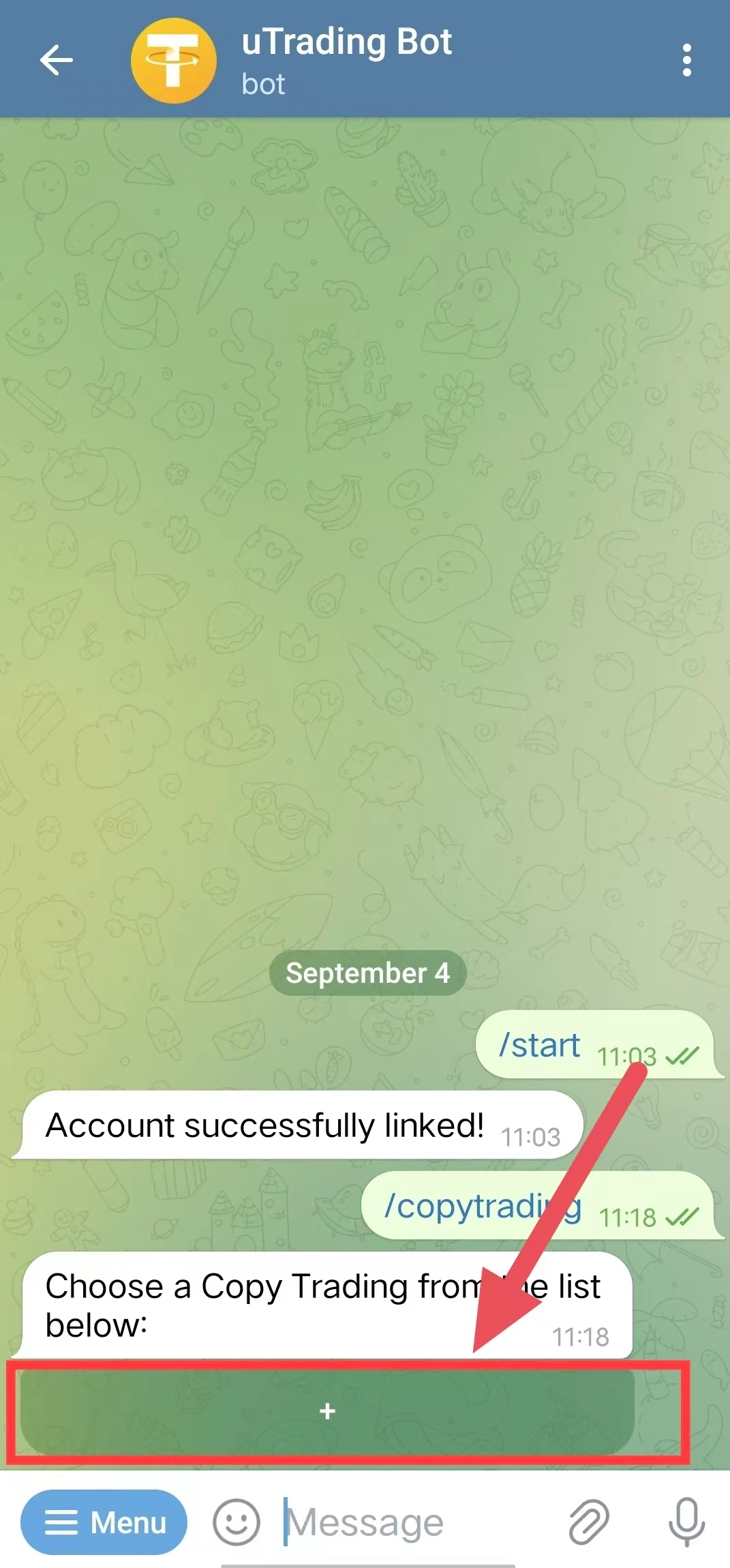
**Step 5:** Click the “+" icon to add a new copy trade to the list. As follow:

<figure><img src="/files/Nbzbn3aOg8ZYYgrbNNPJ" alt="" width="375"><figcaption></figcaption></figure>

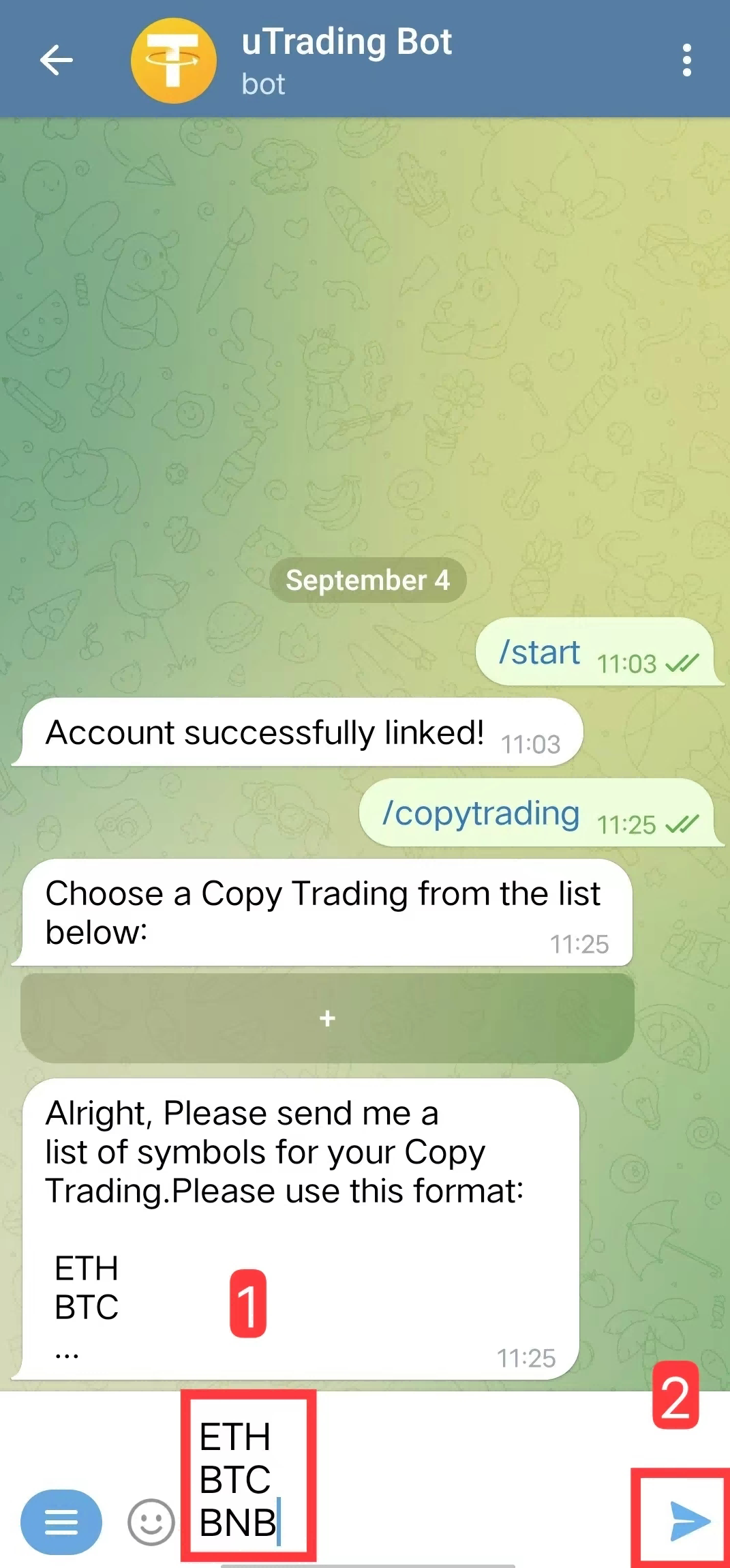
**Step 6:** Fill out the copy trade Token list as required and send it to uTrading Bot. As follow:

<figure><img src="/files/F1DwmVnQX6go5fF54Qpc" alt="" width="375"><figcaption></figcaption></figure>

**Step 7:** Click **\[**<mark style="color:blue;">**Back**</mark>**]** after sending. As follow:

<figure><img src="/files/4K1WIPdMre9Gw6UmhNKY" alt="" width="375"><figcaption></figcaption></figure>

**Step 8:** Select the newly created Copy Trading. As follow:

<figure><img src="/files/hJ2whctmJwQSwhxZUPTB" alt="" width="375"><figcaption></figcaption></figure>

**Step 9:** You can freely edit the Name, Symbols, Title, and Description of the copy trade. All the changes you make will be reflected in the copy trade information. As follow:

<figure><img src="/files/xgUkUm9zOoN0wqbLnDL3" alt="" width="375"><figcaption></figcaption></figure>

**Step 10:** Click **\[**<mark style="color:blue;">**Send**</mark>**]** after setting up the copy trade content you wish to send out. As follow:

<figure><img src="/files/dF0SDlhnwJ7KakMZlAqW" alt="" width="375"><figcaption></figcaption></figure>

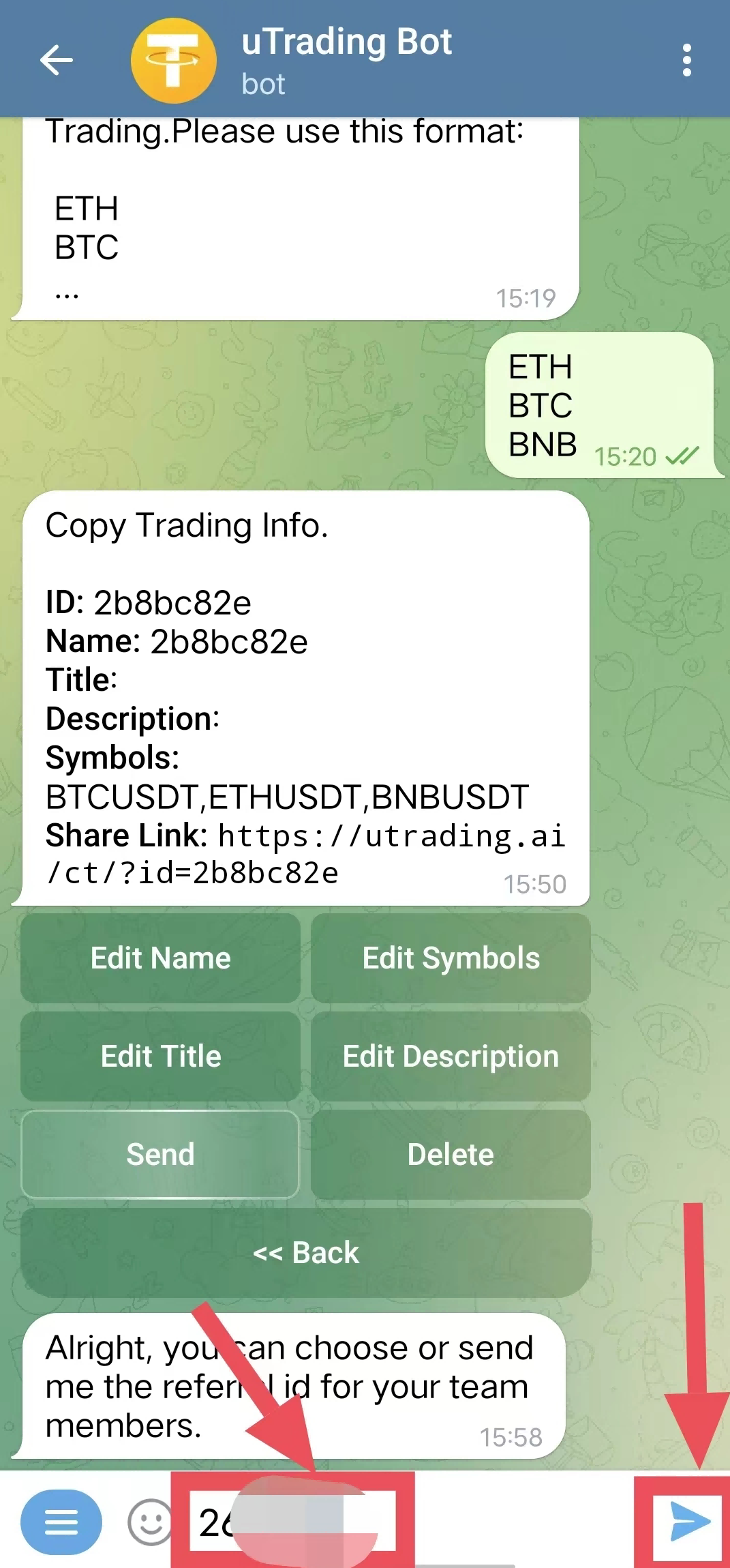
**Step 11:** Enter the ID of the downline to whom you want to send the copy trade information, then hit **\[**<mark style="color:blue;">**Send**</mark>**]**. As follow:

<figure><img src="/files/w1hDl2d2RejTSR5R7e9Z" alt="" width="375"><figcaption></figcaption></figure>

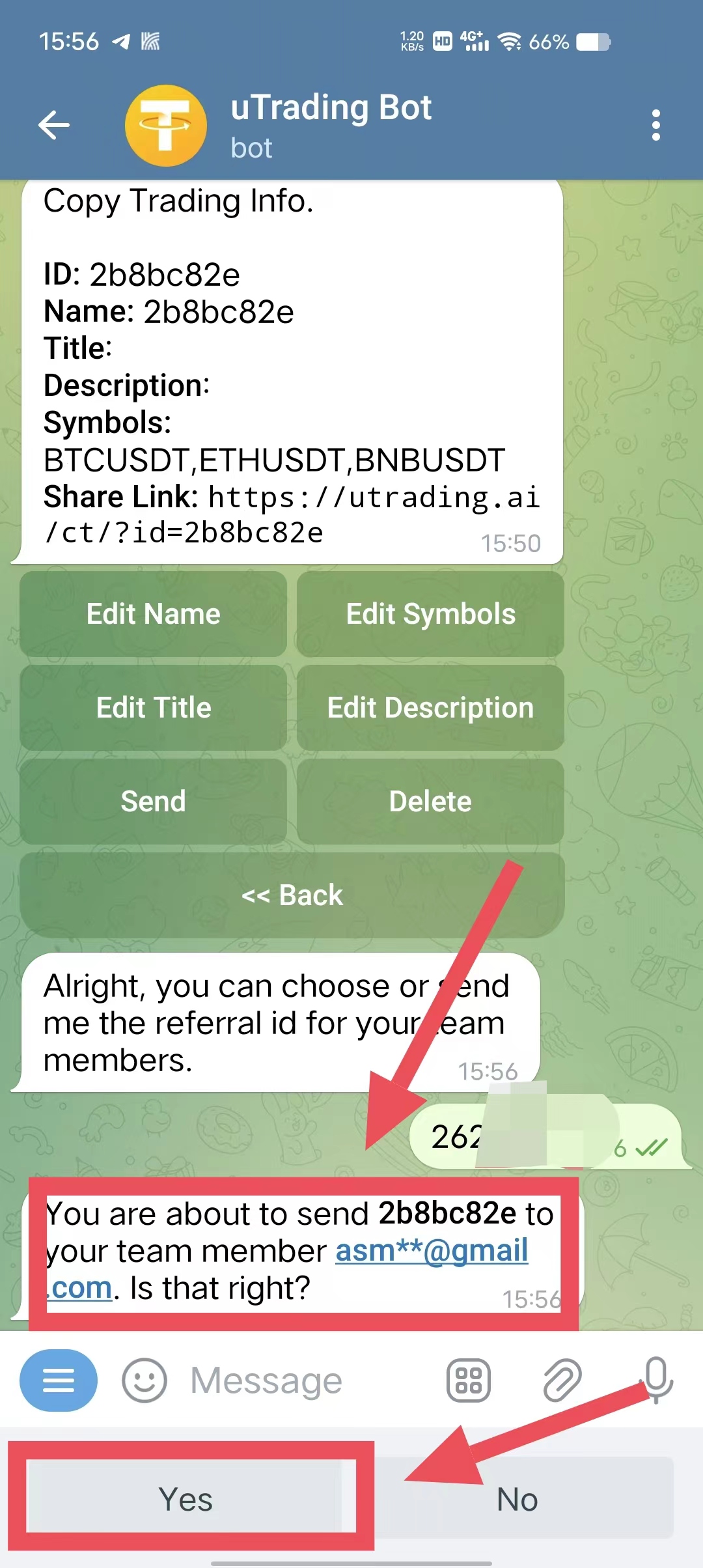
**Step 12:** Confirm that the information is correct and click **\[**<mark style="color:blue;">**Yes**</mark>**]** to complete the sending of the copy trade information. As follow:
<figure><img src="/files/xEasQa33EI5tYqwCdyRN" alt="" width="375"><figcaption></figcaption></figure>

<img src="https://cdn.nlark.com/yuque/0/2023/png/22009019/1693815098011-6e7c7172-f8e8-406c-9d61-a7165930df8b.png" alt="" width="540">


---

# Agent Instructions: Querying This Documentation

If you need additional information that is not directly available in this page, you can query the documentation dynamically by asking a question.

Perform an HTTP GET request on the current page URL with the `ask` query parameter:

```
GET https://help.utrading.io/en/trading/trading-bot/signal-trading/how-to-sending-follow-signal-trading-information.md?ask=<question>
```

The question should be specific, self-contained, and written in natural language.
The response will contain a direct answer to the question and relevant excerpts and sources from the documentation.

Use this mechanism when the answer is not explicitly present in the current page, you need clarification or additional context, or you want to retrieve related documentation sections.